
Can I Download IPTV Smarters on Samsung Smart TV? Australian Guide
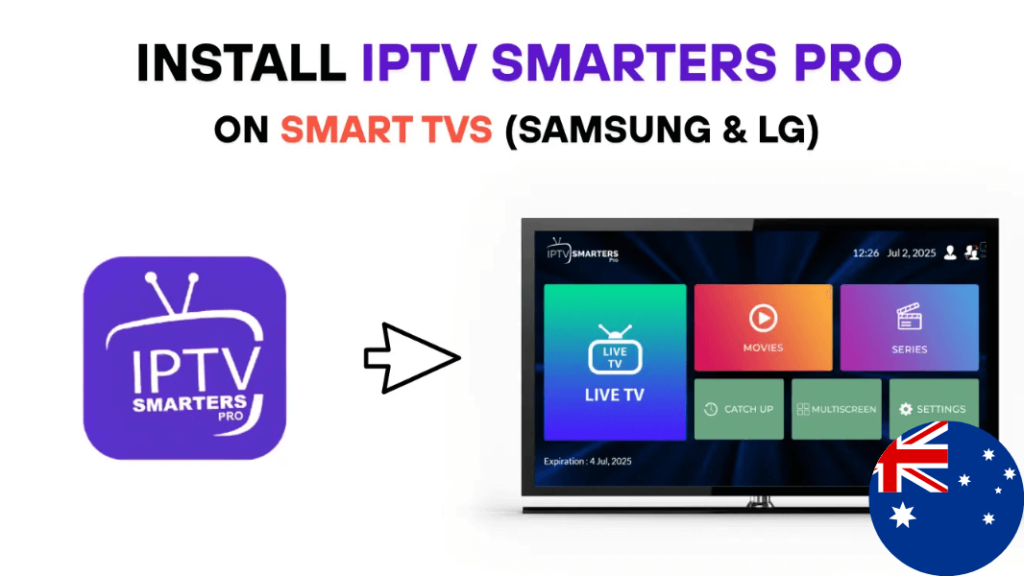
Australian Samsung Smart TV owners frequently ask can I download IPTV Smarters on Samsung Smart TV when setting up their streaming systems. Moreover, understanding the compatibility between IPTV Smarters and Samsung’s Tizen operating system helps you determine the best approach for accessing IPTV content on your television. Therefore, this comprehensive guide explains the technical limitations, available workarounds, and alternative solutions for Australian viewers.
Understanding IPTV Smarters and Samsung Compatibility
The short answer to whether you can download IPTV Smarters on Samsung Smart TV is somewhat complex. Essentially, IPTV Smarters Pro does not have a native application available in the Samsung Smart TV app store. Furthermore, Samsung televisions run on Tizen OS, which differs from Android TV and doesn’t support direct installation of Android applications like IPTV Smarters.
IPTV Smarters Pro is a popular IPTV player application designed primarily for Android devices, iOS, and Windows platforms. Additionally, the developers haven’t created a version specifically for Samsung’s Tizen operating system. This technical limitation affects millions of Samsung Smart TV owners worldwide, including those across Australia.
However, this doesn’t mean Samsung Smart TV owners cannot use IPTV services or access similar functionality. Several workaround methods and alternative solutions exist that provide comparable viewing experiences. Moreover, understanding these options helps you make informed decisions about your IPTV setup.
The lack of native support stems from development priorities and platform differences. Tizen represents a smaller market share compared to Android TV, making dedicated app development less commercially viable for many IPTV player developers. Therefore, users must explore alternative approaches to achieve their streaming goals.
How Samsung Smart TV IPTV Solutions Work
Several methods allow Australian Samsung Smart TV owners to access IPTV content despite the absence of native IPTV Smarters support. Initially, the most straightforward approach involves using external streaming devices that support IPTV Smarters and connect to your Samsung television.
Android TV boxes, Amazon Fire TV Stick, or similar devices run Android operating systems that fully support IPTV Smarters Pro. Furthermore, these affordable devices simply plug into your Samsung TV’s HDMI port, effectively adding Android app compatibility. Once connected, you can install IPTV Smarters just like on any Android device.
Another method involves screen mirroring or casting from smartphones and tablets. Moreover, if you have IPTV Smarters installed on your Android phone or iPhone, you can mirror the display to your Samsung Smart TV using built-in casting features. This approach requires no additional hardware beyond what you already own.
Smart DNS services and casting protocols enable content streaming from mobile devices to televisions. Additionally, Samsung Smart TVs support technologies like Google Cast and AirPlay 2 (on newer models), facilitating wireless streaming from compatible devices.
Some advanced users explore installation of third-party app stores on Samsung Smart TVs. However, this method involves technical complexity and potential security risks. Therefore, most Australian users find external devices or screen mirroring more practical and reliable for everyday use.
Setting Up IPTV on Samsung Smart TV in Australia
Australian Samsung Smart TV owners have multiple practical options for accessing IPTV services. First, consider purchasing an Android TV streaming device, which represents the most straightforward solution. Devices like Nvidia Shield, Xiaomi Mi Box, or Chromecast with Google TV cost between $50-200 AUD and provide full Android app compatibility.
Alternatively, Amazon Fire TV Stick offers excellent value for Australian consumers. Furthermore, these devices frequently go on sale through Amazon Australia and major electronics retailers. Fire TV devices support sideloading of IPTV Smarters and other Android applications not available in their official app store.
Screen mirroring from your smartphone provides a cost-free solution if you already own compatible devices. Additionally, ensure your Samsung Smart TV and mobile device connect to the same Wi-Fi network for reliable streaming performance. The Australian Communications and Media Authority (ACMA) at acma.gov.au provides information about digital television standards and consumer rights.
Some Samsung Smart TVs include built-in web browsers that can access web-based IPTV players. However, this method typically offers limited functionality compared to dedicated applications. Moreover, browser-based streaming may not provide the optimal user experience for regular viewing.
Consider exploring Samsung’s native Smart TV apps that support IPTV functionality. While not identical to IPTV Smarters, several applications available in Samsung’s app store offer similar features for managing IPTV playlists and streams.
Step-by-Step Guide for Australian Users
Follow these practical steps to access IPTV content on your Samsung Smart TV:
Step 1: Determine your preferred method based on budget and technical comfort. External streaming devices offer the simplest experience, whilst screen mirroring requires no additional purchases.
Step 2: If choosing an external device, purchase an Android TV box or Fire TV Stick from reputable Australian retailers. Ensure the device comes with local warranty and support.
Step 3: Connect your streaming device to an available HDMI port on your Samsung Smart TV. Then, plug the device’s power supply into an electrical outlet.
Step 4: Switch your TV input to the correct HDMI channel using your Samsung remote. The device should display its setup screen upon powering on.
Step 5: Complete the initial setup process for your streaming device. Connect to your home Wi-Fi network and sign in with necessary accounts (Google or Amazon).
Step 6: Navigate to the Google Play Store (Android devices) or Amazon App Store (Fire TV). Search for “IPTV Smarters Pro” in the store.
Step 7: Download and install IPTV Smarters Pro on your streaming device. Wait for installation to complete before proceeding.
Step 8: Launch IPTV Smarters Pro and select your preferred login method. Enter your IPTV service credentials or M3U playlist URL as provided by your service provider.
Step 9: Configure the application settings according to your preferences. Adjust video quality, parental controls, and interface options as needed.
Step 10: Test multiple channels to ensure everything functions properly. Additionally, explore the application’s features like favourites, EPG, and recording capabilities.
Alternative Method – Screen Mirroring:
Step 1: Ensure your Samsung Smart TV and smartphone connect to the same Wi-Fi network. This requirement applies to all wireless streaming methods.
Step 2: Install IPTV Smarters Pro on your Android smartphone or iPhone through Google Play Store or Apple App Store respectively.
Step 3: Open screen mirroring on your Samsung TV. Access this through the source menu or SmartThings app depending on your TV model.
Step 4: Enable screen mirroring or casting on your mobile device. Android users access this through Quick Settings, whilst iPhone users use AirPlay.
Step 5: Select your Samsung Smart TV from available devices. The connection establishes within seconds, displaying your phone screen on the television.
Essential Tips for Optimal Performance
Maximising your IPTV experience on Samsung Smart TVs requires attention to several factors. First, ensure your internet connection provides adequate bandwidth for smooth streaming. Most HD content requires at least 10 Mbps, whilst 4K streaming needs 25 Mbps or higher.
Use ethernet connections for streaming devices when possible. Furthermore, wired connections eliminate Wi-Fi interference and provide more stable streaming performance. Most Android boxes and some Fire TV devices include ethernet ports.
Keep your streaming device’s software updated regularly. Manufacturers release updates improving performance, fixing bugs, and adding features. Moreover, updated software ensures compatibility with the latest IPTV Smarters versions.
Position streaming devices for optimal heat dissipation. Additionally, ensure adequate ventilation around devices to prevent overheating that can cause performance issues or hardware damage.
Invest in quality HDMI cables if experiencing picture quality issues. Whilst expensive cables aren’t necessary, certified cables ensure proper signal transmission. Furthermore, HDMI 2.0 or newer cables support higher resolutions and refresh rates.
Organise your IPTV playlists efficiently within IPTV Smarters. Create favourite channel lists and remove unused content to simplify navigation. Additionally, well-organised playlists significantly enhance daily usability.
Consider upgrading to premium IPTV Smarters Pro if using the free version. The paid version offers additional features like multi-screen support, advanced EPG, and enhanced customisation options. Moreover, the one-time purchase price remains reasonable for the added functionality.
Finally, only use legitimate IPTV services operating legally in Australia. Licensed providers ensure reliable streams, customer support, and compliance with copyright laws. Therefore, prioritising legal services protects you whilst supporting content creators.
Conclusion
With the right approach, you can easily understand can I download IPTV Smarters on Samsung Smart TV in Australia and find practical solutions for your streaming needs. Whilst direct installation isn’t possible due to Tizen OS limitations, external streaming devices and screen mirroring provide excellent alternatives. Choose the method matching your budget and preferences, follow proper setup procedures, and optimise your configuration for the best viewing experience. These workarounds deliver full IPTV Smarters functionality on your Samsung Smart TV effectively.